

Android Privacy Guide: App Permissions, Location, Camera, Microphone and Data Control
An Android privacy guide explaining app permissions, location access, camera and microphone control, background activity, contacts, photos, ads and safe permission habits.
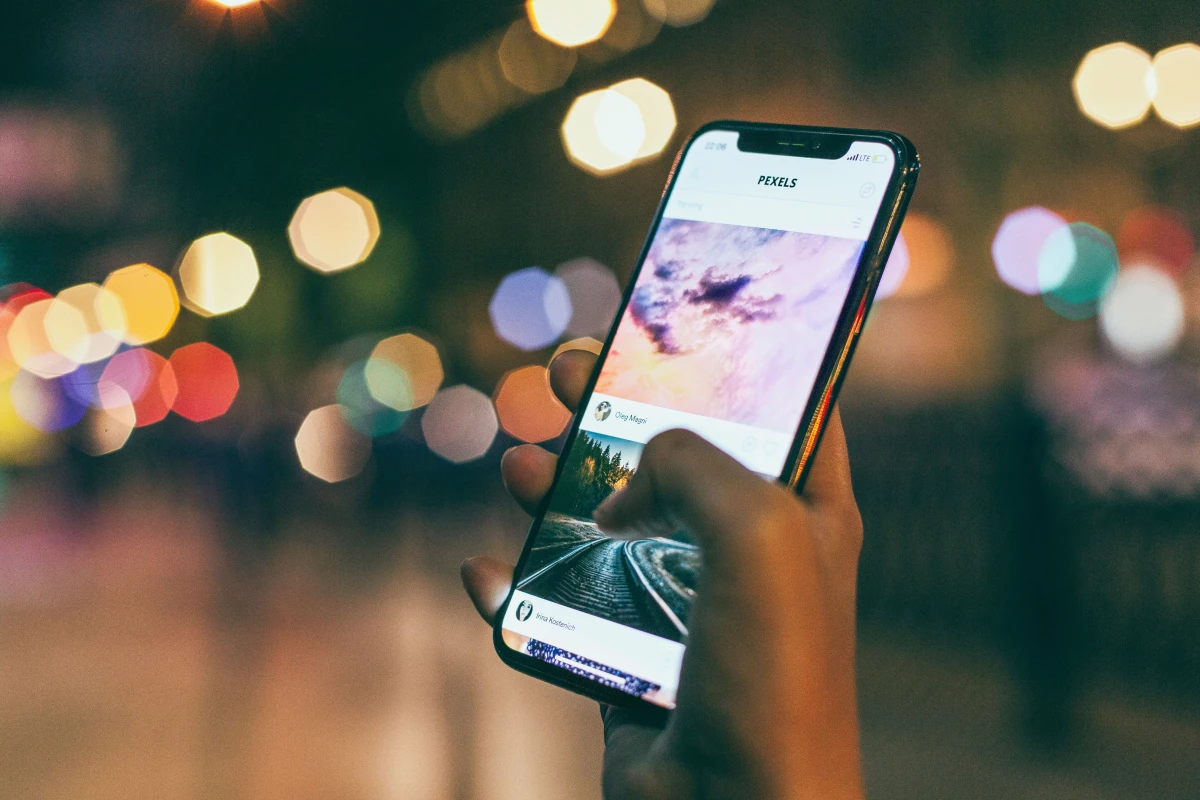
Android privacy is not about disabling everything blindly. It is about understanding which apps need camera, microphone, location, contacts, files or background access and removing permissions that do not match the app’s real purpose.
The best privacy habit is simple: give apps only the access they need, review permissions after installing new apps and remove unused apps that still hold sensitive access.
Review permissions by category
Camera, microphone, location, contacts, phone, messages and photos should be reviewed from Android settings. This is easier than opening every app one by one.
Control location access
Some apps need precise location while using them, but many do not need constant background location. Review always-on access carefully, especially for shopping, weather, social and delivery apps.
Check camera and microphone access
Meeting, camera and voice apps may need access, but random games, flashlight apps or wallpaper apps usually do not. Permission should match function.
Limit background activity
Some apps run in the background for sync, notifications or tracking. Review battery and background data behavior when privacy and battery problems appear together.
Remove unused apps
An unused app can still hold permissions. Removing it is often safer than only turning off one setting.
Android guide scorecard
| Guide area | Good sign | Warning sign |
|---|---|---|
| Permissions | Access matches app purpose | Broad access accepted |
| Location | Only needed apps allowed | Always-on access ignored |
| Camera/mic | Sensitive access controlled | Random apps allowed |
| Background | Activity reviewed | Silent access continues |
| Cleanup | Unused apps removed | Old apps keep permissions |
Clean action checklist
- Open permission manager.
- Review location access.
- Check camera and microphone permissions.
- Remove unused apps.
- Turn off permissions that do not match purpose.
- Check background data for suspicious apps.
- Review photos and files access.
- Avoid installing unknown APKs.
- Recheck after new app installs.
- Use privacy settings calmly.
Why this guide matters
- Privacy guides should avoid fear and focus on control.
- Some permissions are normal when they match the app’s job; the problem is unnecessary or unexplained access.
- Shared family phones and business phones need stricter permission discipline.
- Permission review can improve battery and security at the same time.
- The final advice should make privacy a regular habit, not a one-time setup.
Real-world guide flow
- Start by identifying the exact symptom, not by changing random settings.
- Use built-in Android settings before installing new helper apps.
- Protect photos, chats, payment access and important files before deleting or resetting anything.
- Check recent changes such as new apps, updates, chargers, network changes or permission prompts.
- Finish with one safe action the reader can verify immediately on the phone.
Detailed owner checklist
- Use this android privacy guide on the actual phone involved, because Android behavior can vary by brand and version.
- Write down what changed before the problem started: new app, new charger, update, travel, storage warning or pop-up.
- Avoid unknown APKs, booster apps, fake cleaner alerts and support links sent through messages.
- Back up important data before deleting apps, clearing major storage, resetting settings or transferring phones.
- Check whether the phone is used for banking, family communication or business before making risky changes.
- Use plain settings and official app stores wherever possible.
- Escalate to service, bank support or trusted technical help when money, device safety or important data is involved.
- Keep the final advice practical enough for parents, students, shop owners and normal smartphone users.
Final publishing checks
- No unsafe rooting, bypassing, APK-piracy, spyware, remote-access or risky repair instructions are included.
- The guide focuses on high-impact problems users actually face, not generic feature descriptions.
- The topic is useful for search visibility because it solves a specific Android pain point.
- The article can later be internally linked from Windows, iPhone, troubleshooting and beginner guide pages.
- The conclusion avoids current app rankings, live offers and brand-specific promises.
Business content note
Final verdict
Final reader-fit checks
- Review permissions again after installing new shopping, finance, meeting or camera apps.
- Keep privacy practical by explaining what each access does and why the user may or may not need it.
Expanded Android impact checks
- Check permission usage history where available so users see which apps accessed location, camera or microphone recently.
- Use while-using access for apps that need location only during active use, such as maps or delivery apps.
- Remove contacts permission from apps that do not need address-book access for their core function.
- Review photo access carefully because some apps need one image, not the entire gallery.
- Check microphone access after installing screen recorders, voice tools, social apps or meeting apps.
- Use separate accounts or profiles for shared phones when privacy matters inside a family or shop.
- Review ad personalization separately from app permissions, because both affect data control differently.
- Remove abandoned apps rather than only switching off one permission, because old apps may still receive updates or notifications.
- Teach users to question permission prompts that appear at strange moments, such as a calculator asking for contacts.
- Repeat permission review after major Android updates because settings and app behavior can change.
Business content note
Privacy-aware brands can publish responsible Android permission guides and support pages with Indian Web Services services.
Final publishing check
- Review Android Privacy Guide: App Permissions, Location, Camera, Microphone and Data Control with a real Android user before import.
- Make the article solve one clear problem instead of becoming a generic settings overview.
Final import-ready completion
- Add a final privacy review after one week, because users often approve permissions during busy moments and forget them later.
- Keep one simple rule: if the permission does not match the app’s purpose, pause and review before allowing it.
What's Your Reaction?
 Like
0
Like
0
 Dislike
0
Dislike
0
 Love
0
Love
0
 Funny
0
Funny
0
 Wow
0
Wow
0
 Sad
0
Sad
0
 Angry
0
Angry
0









Comments (0)