

Productivity App Review: Tasks, Notes, Calendar, Sync and Daily Workflow
A productivity app review covering task management, notes, calendar integration, reminders, search, sync reliability, collaboration and daily usability.
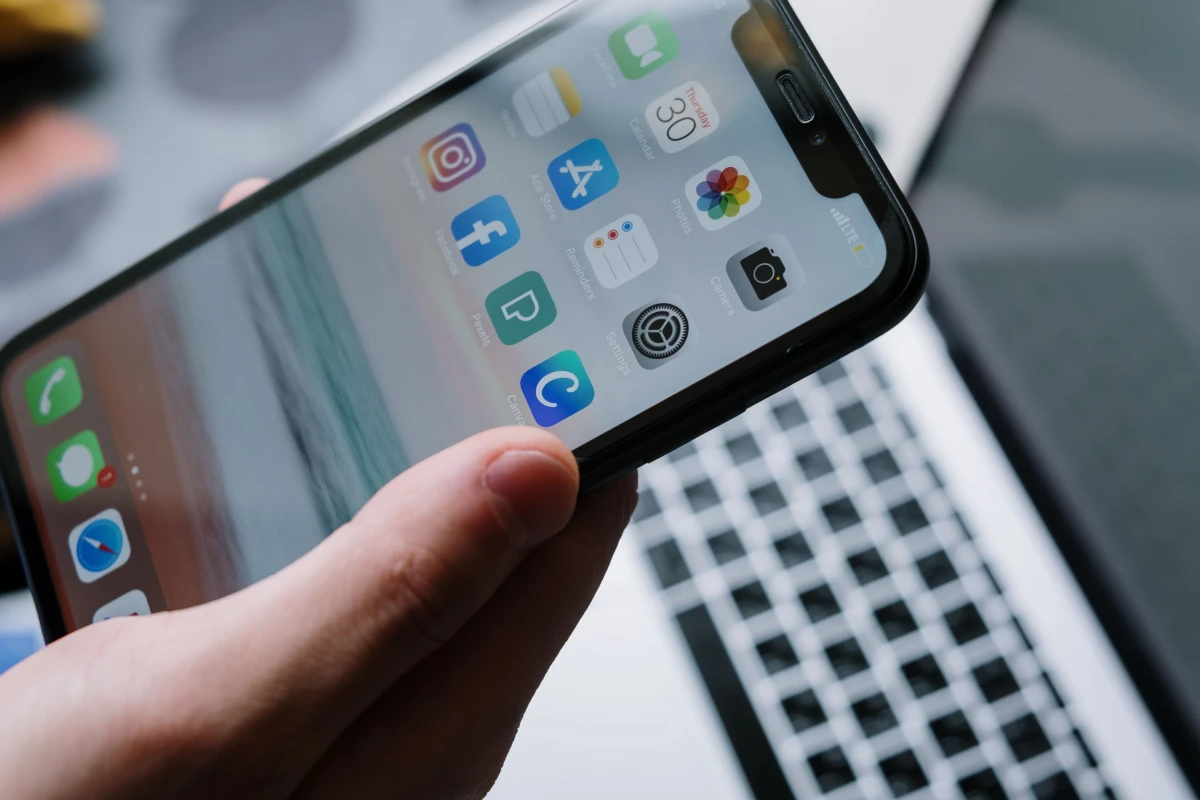
Productivity apps should reduce mental load
A productivity app should help users remember, plan and complete work with less stress. It should not become another place where tasks disappear. The review should test whether the app fits the user’s daily rhythm.
Different people need different systems. A freelancer may need project notes, a student may need deadlines, a business owner may need follow-ups, and a team may need shared tasks.
Capture should be fast
The first productivity test is quick capture. Can the user add a task, note, idea or reminder in seconds? If capture is slow, the user may return to messaging apps or paper notes. Fast capture is essential.
| Productivity area | Review test | Why |
|---|---|---|
| Tasks | Create and organize quickly | Execution |
| Notes | Search and structure | Memory |
| Calendar | Deadline visibility | Planning |
| Sync | Phone and desktop match | Reliability |
| Reminders | Timely alerts | Follow-through |
| Collaboration | Share and assign | Team work |
Organization without overload
Folders, tags, boards, priorities and filters can help, but too much structure becomes work by itself. Review whether the app makes organization easier or forces the user to maintain a complicated system.
Search and retrieval
A productivity app is only useful if old information can be found. Test search by task name, note text, date, tag and attachment. Weak search turns notes into a digital drawer.
Sync reliability
Users often move between phone, laptop and tablet. Sync should be reliable and fast. Lost notes or duplicate tasks reduce trust immediately. Test offline changes and later syncing.
Reminder quality
Reminders should be easy to set and hard to miss. But they should not become noisy. Review recurring reminders, location-based reminders where relevant, snooze and notification controls.
Businesses needing internal task portals, client dashboards or workflow systems can plan custom productivity tools through Indian Web Services services.
Productivity app checklist
- Test quick capture.
- Review task organization.
- Search old notes.
- Check calendar view.
- Test sync across devices.
- Control reminders.
- Review sharing options.
- Use for one real week.
Final lesson
A productivity app succeeds when it becomes trusted daily infrastructure, not a complicated system users avoid.
Review the app during a busy day, not only during setup. A system that looks clean with five tasks may become messy with fifty. Real workload reveals whether filters, priorities and views are practical.
Collaboration features need careful testing. Assigning tasks, commenting, sharing notes and setting due dates should be clear. If team members need extra messages to explain every task, the productivity app is not reducing communication load.
Export matters because personal and business notes can become valuable over time. Users should know whether they can download tasks, notes, attachments or project records if they leave the app.
Automation can help, but it should not hide work. Recurring tasks, templates and calendar rules are useful only when users understand what the system is creating. Surprise tasks reduce trust.
Finally, review emotional fit. Some users like simple lists; others prefer boards or calendars. The best productivity app is one the user will actually open every day.
Review recurring task behavior carefully. A recurring task should reset at the right time, preserve history and avoid duplicating clutter. Poor recurrence design can make a clean system messy.
Keyboard shortcuts, widgets and quick actions can matter for heavy users. A productivity app becomes stronger when capture and review are available without opening five screens.
Privacy is still relevant for productivity apps because notes may contain business ideas, client names, passwords, personal plans or financial reminders. Locking and export options should be checked.
The final review for productivity-app-review-tasks-notes-calendar-sync-and-daily-workflow should be repeated after real use, because installation impressions can differ from daily behavior, support quality and long-term trust.
Review how the app handles abandoned tasks. Old tasks should be easy to reschedule, archive or delete. A productivity app becomes stressful when yesterday’s work piles up without control.
Templates can be valuable for repeated workflows. Weekly planning, client onboarding, content publishing or invoice follow-up should be reusable without rebuilding lists every time.
Check whether notes and tasks can connect. A meeting note that creates a task, or a project note linked to a deadline, reduces the gap between thinking and doing.
Mobile widgets and lock-screen shortcuts can improve daily use. If capture is available only after opening the full app, small ideas may still be lost.
Review whether the app supports focus. Too many badges, notifications and dashboards can make planning feel like another task instead of a tool that clears the mind.
Test the productivity app at three moments: quick capture, planning and review. A tool may be excellent for entering tasks but weak for deciding what to do next. A complete review should check the full daily rhythm rather than one screen.
Review how the app handles different work types. A call reminder, project task, personal errand, meeting note and recurring bill are not the same. The app should organize them without forcing everything into one confusing format.
Check whether the system encourages closure. Completed tasks, archived notes and old projects should be easy to clean up. Productivity tools become heavy when old information remains visible forever.
A productivity tool should also be checked at the end of the day. The review screen should help the user close work, move unfinished tasks and start tomorrow without mental clutter.
A useful productivity app should make postponed tasks visible without making the user feel buried under old work.
What's Your Reaction?
 Like
0
Like
0
 Dislike
0
Dislike
0
 Love
0
Love
0
 Funny
0
Funny
0
 Wow
0
Wow
0
 Sad
0
Sad
0
 Angry
0
Angry
0








Comments (0)