

Windows Privacy Guide: Permissions, Location, Diagnostics, Ads and Account Controls
A Windows privacy guide covering permissions, location, diagnostics, advertising ID, app access, account settings, activity history and practical privacy control.
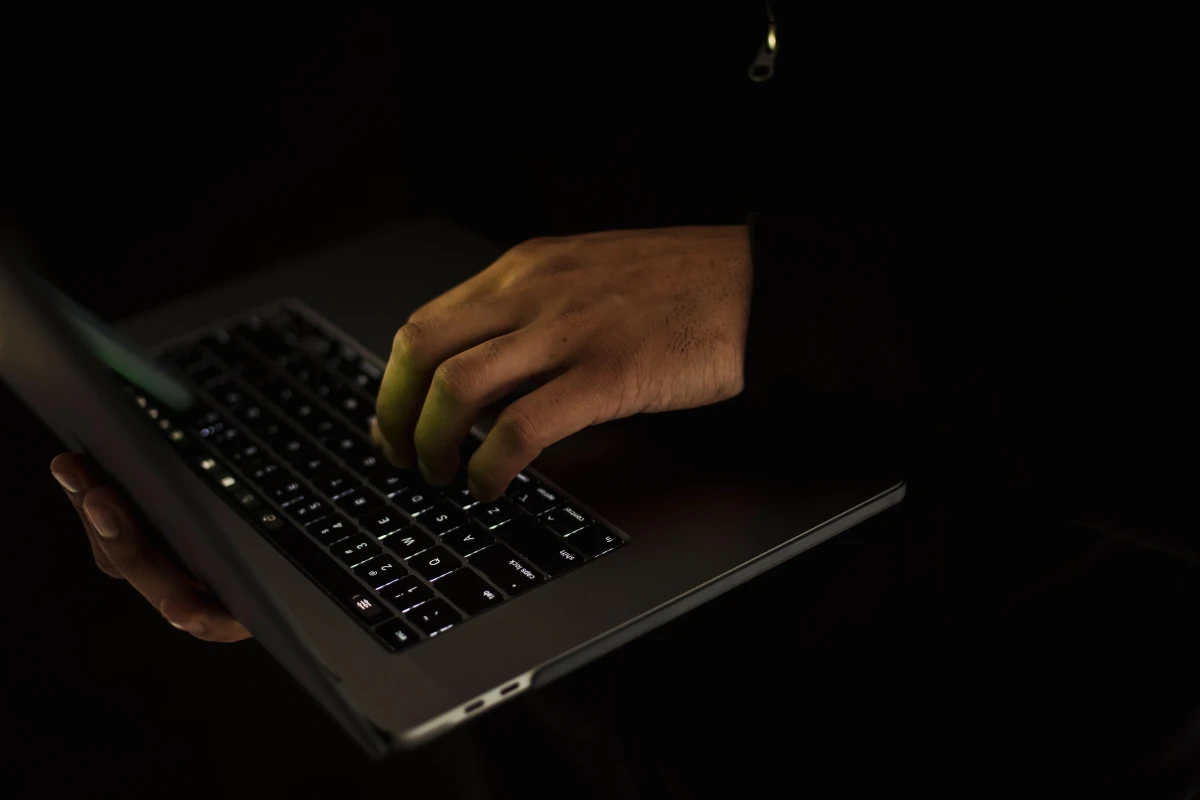
Windows privacy settings should be reviewed calmly. The goal is not to disable everything blindly, but to understand location access, diagnostics, advertising preferences, app permissions and account controls so the computer matches the user’s comfort level.
Good privacy control means knowing which permissions are needed, which are optional and which apps should not have unnecessary access.
Review app permissions
Camera, microphone, location, contacts, files and background access should be checked by category. Apps should have only the access they reasonably need.
Understand diagnostics
Diagnostic data can help improve reliability, but users should know what level is selected and whether optional data sharing is enabled.
Check advertising and personalization
Advertising ID and personalization settings affect how experiences are tailored. Review them if the user wants less tracking-style personalization.
Control account and activity settings
Microsoft account sync, activity history and device settings can be useful, but they should be understood before being accepted blindly.
Revisit privacy after app installs
New apps may request new permissions. Privacy is not a one-time setup; it should be reviewed after major changes.
Windows guide scorecard
| Guide area | Good sign | Warning sign |
|---|---|---|
| Permissions | App access reviewed by category | All apps get broad access |
| Diagnostics | Settings understood | Optional sharing ignored |
| Ads | Personalization controlled | Defaults accepted without review |
| Account | Sync choices clear | Account behavior misunderstood |
| Routine | Privacy revisited later | Setup never checked again |
Clean action checklist
- Open Windows privacy settings.
- Review camera and microphone access.
- Check location permissions.
- Review background app access.
- Check diagnostic data level.
- Review advertising ID settings.
- Understand account sync.
- Remove unused apps with permissions.
- Recheck after installing new tools.
- Use calm control, not random disabling.
Reader-friendly guide notes
- Privacy guides should avoid fear-based language because some permissions are useful when clearly understood.
- The article should explain that camera and microphone access can be important for calls but should not be open to unnecessary apps.
- Account sync is convenient for many users but may feel uncomfortable for shared or business devices.
- Reviewing privacy by category is easier than trying to understand every setting at once.
- The final verdict should make privacy feel manageable and personal.
Practical guide flow
- Start with the simplest safe setting before changing advanced options.
- Use built-in Windows tools first, then trusted official apps only when needed.
- Keep important files protected before making major changes.
- Explain each action in beginner-friendly language so users know why it matters.
- Finish with a clear result the reader can verify on their own device.
Detailed owner checklist
- Use this windows privacy guide on the actual Windows device, not only from memory.
- Save important work before changing settings, removing apps or restarting the computer.
- Avoid unknown download sites, fake driver tools, aggressive cleanup apps and suspicious popups.
- Check whether the advice works for personal, student, business or shared family computers.
- Keep the guide evergreen by focusing on safe method instead of temporary interface hype.
- Use screenshots or clear labels when publishing if the CMS supports article images.
- Mention when professional help is safer than experimenting with important data.
- End with one simple next action the reader can complete today.
Final import-ready additions
- Confirm the guide avoids unsafe registry edits, bypass tricks, cracked software or risky repair steps.
- Make the advice helpful for beginners while still useful for business owners and regular laptop users.
- Keep the wording calm, practical and non-technical wherever possible.
- Avoid current version claims unless the article is checked again before publishing.
- Include internal links to related Windows, Android, iPhone or AI guide pages after those categories are imported.
Business content note
Final verdict
Final reader-fit checks
- Check privacy settings after installing new communication, camera, storage or productivity apps.
- Mention that privacy choices are personal and should match how the device is used.
Expanded Windows guide checks
- Review camera and microphone access after installing meeting, recording or messaging apps.
- Check location permissions separately because maps, weather and device-finding features may use them differently.
- Review background app access so unused apps do not continue working quietly.
- Turn off optional personalization only after understanding what convenience may change.
- Check account sync on shared computers because personal settings may appear across devices.
- Review diagnostic choices after major Windows updates because settings can be revisited.
- Remove unused apps that still hold permissions instead of only switching off one setting.
- Explain that privacy decisions are personal and should match home, student or business use.
- Check browser privacy settings separately because Windows settings do not control everything online.
- End with permission awareness rather than fear-based disabling.
Business content note
Privacy-focused service websites can create responsible technology guides and transparent help pages through Indian Web Services services.
Final publishing check
- Review Windows Privacy Guide: Permissions, Location, Diagnostics, Ads and Account Controls with a real Windows user in mind before publishing.
- Keep the guide calm, safe, practical and easy to follow without advanced technical risk.
Final completion checks
- Review file-system permissions for apps that do not need access to documents, pictures or videos.
- Check whether shared family or office devices use separate accounts for cleaner privacy control.
- Keep a reminder to review permissions after installing meeting apps, screen recorders or cloud storage tools.
Last safe-use reminder
- Make sure Windows Privacy Guide: Permissions, Location, Diagnostics, Ads and Account Controls gives a beginner one clear safe result.
- Avoid risky changes and keep important files protected before troubleshooting.
Import completion note
- Before importing, confirm the article gives one clear safe action and avoids risky system changes.
- Keep the guide useful for beginners by explaining the visible Windows setting or result to check.
What's Your Reaction?
 Like
0
Like
0
 Dislike
0
Dislike
0
 Love
0
Love
0
 Funny
0
Funny
0
 Wow
0
Wow
0
 Sad
0
Sad
0
 Angry
0
Angry
0








Comments (0)