

Windows Troubleshooting Guide: Slow PC, Wi-Fi Issues, App Errors and Safe Fixes
A Windows troubleshooting guide for slow PC issues, Wi-Fi problems, app errors, restart loops, storage warnings, update errors and safe beginner fixes.
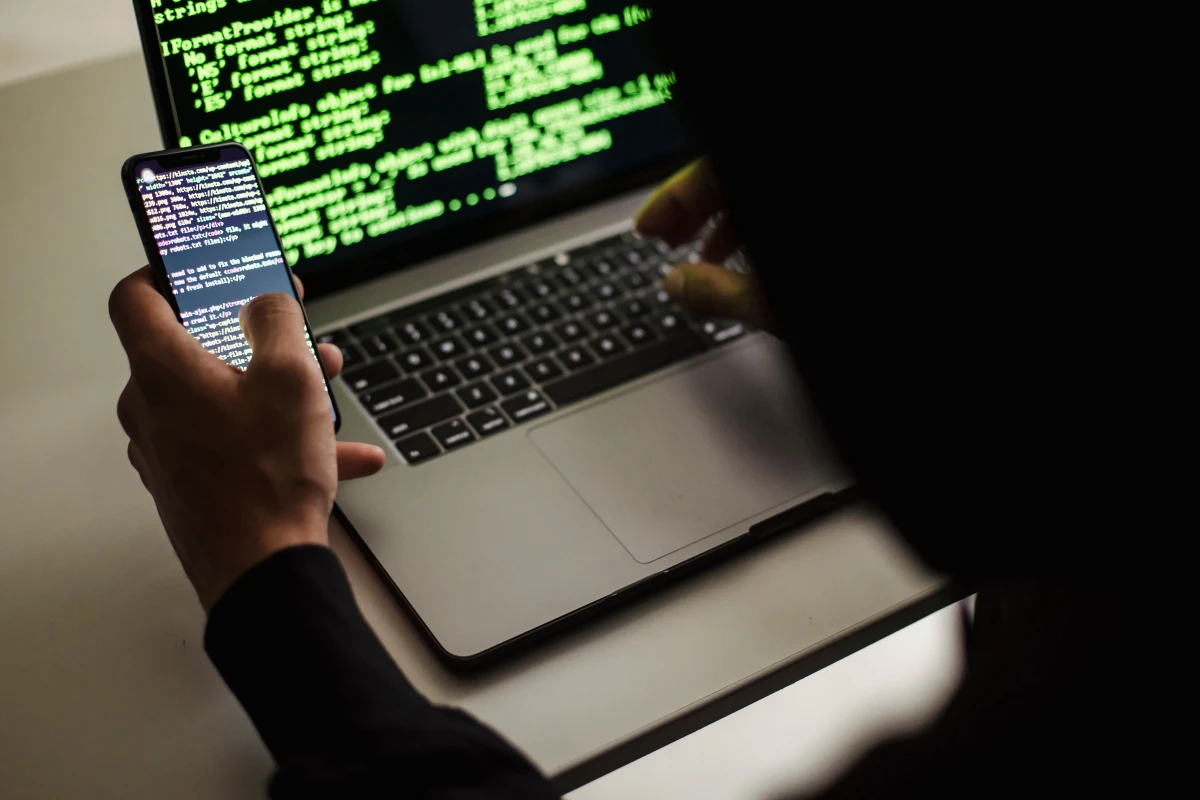
Windows problems can make users search random fixes quickly, but unsafe troubleshooting can make things worse. A beginner-friendly guide should start with simple, reversible checks before advanced repair steps.
Good troubleshooting moves from simple to specific: restart, check updates, check storage, test internet, isolate the app and record the exact error.
Start with the symptom
Write down what is happening, when it started and whether it affects one app or the whole computer. Clear symptoms prevent random fixing.
Use safe first checks
Restart, update, check storage, scan for threats, reconnect Wi-Fi and test another browser or app. These checks solve many common problems safely.
Isolate app problems
If only one app fails, update it, clear its cache if safe, reinstall from official source or check service status before changing Windows settings.
Handle Wi-Fi issues logically
Check airplane mode, router, password, distance, other devices and network adapter status. Avoid changing advanced settings blindly.
Know when to stop
If data, business files, boot errors or repeated crashes are involved, professional help may be safer than experimenting.
Windows guide scorecard
| Guide area | Good sign | Warning sign |
|---|---|---|
| Symptom | Problem described clearly | Random fixes attempted |
| First checks | Simple safe steps used | Deep changes immediately |
| Apps | Single app isolated | Whole PC blamed |
| Wi-Fi | Network tested logically | Settings changed blindly |
| Escalation | Help sought when needed | Important data risked |
Clean action checklist
- Restart the computer.
- Write the exact error message.
- Check internet on another device.
- Update Windows and the affected app.
- Check free storage.
- Scan with trusted security tools.
- Test another browser if needed.
- Avoid unknown repair downloads.
- Back up files before major fixes.
- Stop if important data is at risk.
Reader-friendly guide notes
- Troubleshooting content should reduce panic and prevent risky experimentation.
- A clear error message is valuable; users should copy or screenshot it before making changes.
- Wi-Fi issues may come from router, device, password, range or service provider, not only Windows.
- The article should avoid advanced commands unless written for technical users.
- The final verdict should encourage safe diagnosis before dramatic repair attempts.
Practical guide flow
- Start with the simplest safe setting before changing advanced options.
- Use built-in Windows tools first, then trusted official apps only when needed.
- Keep important files protected before making major changes.
- Explain each action in beginner-friendly language so users know why it matters.
- Finish with a clear result the reader can verify on their own device.
Detailed owner checklist
- Use this windows troubleshooting guide on the actual Windows device, not only from memory.
- Save important work before changing settings, removing apps or restarting the computer.
- Avoid unknown download sites, fake driver tools, aggressive cleanup apps and suspicious popups.
- Check whether the advice works for personal, student, business or shared family computers.
- Keep the guide evergreen by focusing on safe method instead of temporary interface hype.
- Use screenshots or clear labels when publishing if the CMS supports article images.
- Mention when professional help is safer than experimenting with important data.
- End with one simple next action the reader can complete today.
Final import-ready additions
- Confirm the guide avoids unsafe registry edits, bypass tricks, cracked software or risky repair steps.
- Make the advice helpful for beginners while still useful for business owners and regular laptop users.
- Keep the wording calm, practical and non-technical wherever possible.
- Avoid current version claims unless the article is checked again before publishing.
- Include internal links to related Windows, Android, iPhone or AI guide pages after those categories are imported.
Business content note
Final verdict
Final reader-fit checks
- Check whether the problem happens in one user account, one app, one Wi-Fi network or the whole device.
- Mention that important files should be backed up before any reset, reinstall or major repair step.
Expanded Windows guide checks
- Ask whether the issue started after an update, app install, power cut, router change or storage warning.
- Test the same website or app on another device before blaming Windows.
- Write down the exact error text because a screenshot helps support or future diagnosis.
- Check free storage and restart before trying complicated repairs.
- Use one fix at a time so the user knows what actually changed the result.
- Check whether Wi-Fi issues affect one network or every network the laptop joins.
- Update the affected app from its official source before reinstalling it.
- Back up important files before resets, system restore or account changes.
- Stop when business data, family photos or boot errors are involved and get safer help.
- End with simple diagnosis instead of random repair-tool downloads.
Business content note
Repair shops and IT service providers can build trusted troubleshooting content and enquiry flows through Indian Web Services services.
Final publishing check
- Review Windows Troubleshooting Guide: Slow PC, Wi-Fi Issues, App Errors and Safe Fixes with a real Windows user in mind before publishing.
- Keep the guide calm, safe, practical and easy to follow without advanced technical risk.
Final completion checks
- Check whether the issue appears after login only, which can point toward startup apps or account-specific settings.
- Review router lights and service status before changing Windows network settings.
- Keep a short troubleshooting log so repeated issues can be explained clearly to support.
Last safe-use reminder
- Make sure Windows Troubleshooting Guide: Slow PC, Wi-Fi Issues, App Errors and Safe Fixes gives a beginner one clear safe result.
- Avoid risky changes and keep important files protected before troubleshooting.
What's Your Reaction?
 Like
0
Like
0
 Dislike
0
Dislike
0
 Love
0
Love
0
 Funny
0
Funny
0
 Wow
0
Wow
0
 Sad
0
Sad
0
 Angry
0
Angry
0








Comments (0)