

Windows Update Guide: Safe Updates, Restart Timing, Driver Checks and Troubleshooting
A Windows update guide covering safe update habits, restart timing, driver checks, optional updates, failed updates, rollback thinking and beginner-friendly troubleshooting.
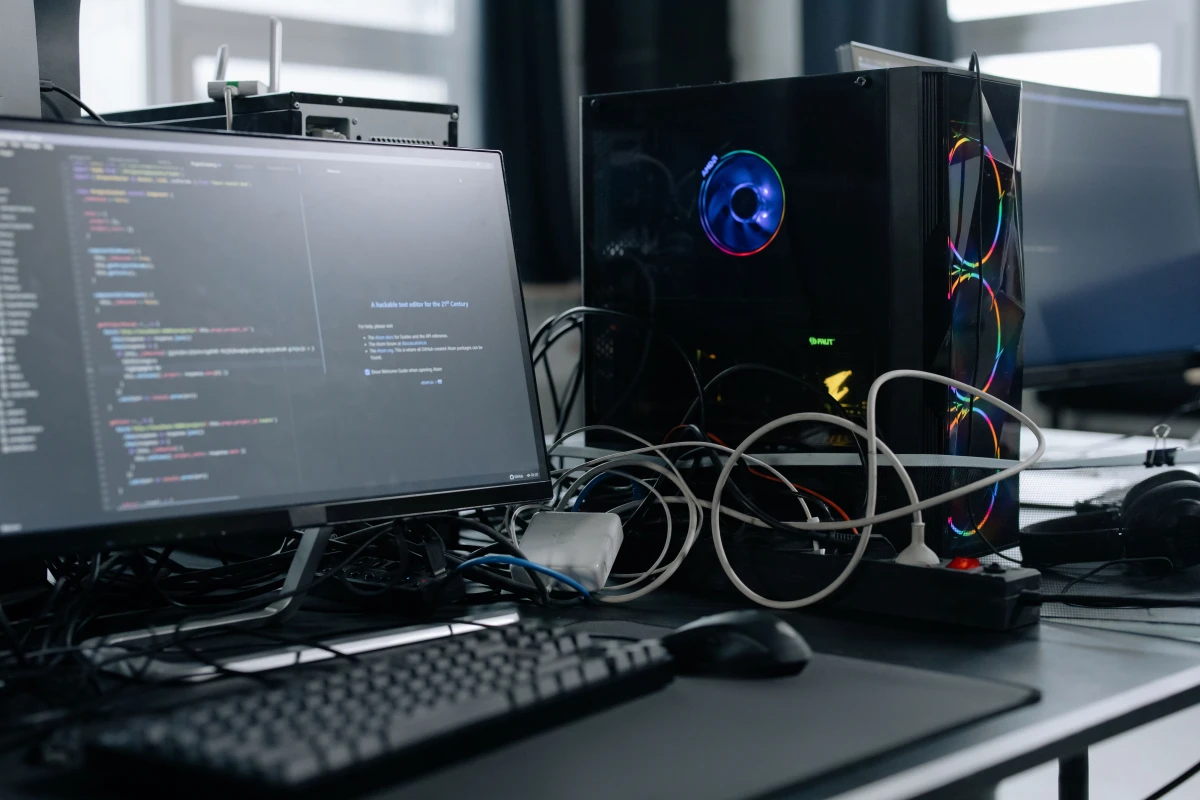
Windows updates can feel annoying, especially when they arrive during work. But updates also fix bugs, improve security and keep devices compatible. A good update guide helps users update safely without panic or random driver downloads.
The safest update habit is to use trusted update paths, restart at the right time, keep power connected and avoid suspicious driver websites.
Use the official update path
Windows Update should be the main place for system updates. Manufacturer support tools may help for drivers, but random driver download websites should be avoided.
Choose restart timing
Updates should not be started right before meetings, classes, travel or urgent billing work. Schedule restarts when there is time to wait.
Understand optional updates
Optional updates may include drivers or previews. Beginners should not install every optional item without reason.
Handle failed updates calmly
A failed update may need restart, storage cleanup, internet check or another attempt. Avoid forcing risky fixes without understanding the error.
Review drivers safely
Drivers affect hardware. Use Windows Update, manufacturer tools or official device pages instead of unknown installers.
Windows guide scorecard
| Guide area | Good sign | Warning sign |
|---|---|---|
| Source | Official update channels used | Random driver sites trusted |
| Timing | Restart planned | Update started before urgent work |
| Optional | Installed only with reason | Everything clicked blindly |
| Failure | Calm basic checks used | Risky fixes attempted |
| Drivers | Trusted vendor sources | Unknown packages installed |
Clean action checklist
- Plug in laptop before major update.
- Save open work first.
- Use Windows Update settings.
- Avoid random driver websites.
- Check storage if update fails.
- Restart when prompted.
- Do not interrupt update process.
- Review optional updates carefully.
- Use manufacturer tools when needed.
- Create backup before major changes.
Reader-friendly guide notes
- Update guides should be practical because users often delay updates due to bad timing.
- The article should explain that not every optional update is automatically necessary.
- Driver updates should be handled carefully because wrong drivers can create device problems.
- A failed update is not a reason to install random tools from search results.
- The final verdict should promote patient, official and scheduled update habits.
Practical guide flow
- Start with the simplest safe setting before changing advanced options.
- Use built-in Windows tools first, then trusted official apps only when needed.
- Keep important files protected before making major changes.
- Explain each action in beginner-friendly language so users know why it matters.
- Finish with a clear result the reader can verify on their own device.
Detailed owner checklist
- Use this windows update guide on the actual Windows device, not only from memory.
- Save important work before changing settings, removing apps or restarting the computer.
- Avoid unknown download sites, fake driver tools, aggressive cleanup apps and suspicious popups.
- Check whether the advice works for personal, student, business or shared family computers.
- Keep the guide evergreen by focusing on safe method instead of temporary interface hype.
- Use screenshots or clear labels when publishing if the CMS supports article images.
- Mention when professional help is safer than experimenting with important data.
- End with one simple next action the reader can complete today.
Final import-ready additions
- Confirm the guide avoids unsafe registry edits, bypass tricks, cracked software or risky repair steps.
- Make the advice helpful for beginners while still useful for business owners and regular laptop users.
- Keep the wording calm, practical and non-technical wherever possible.
- Avoid current version claims unless the article is checked again before publishing.
- Include internal links to related Windows, Android, iPhone or AI guide pages after those categories are imported.
Business content note
Final verdict
Final reader-fit checks
- Check update timing around exams, meetings, billing work or travel, because a badly timed restart creates stress.
- Mention that optional driver updates should be approached carefully unless there is a real issue to solve.
Expanded Windows guide checks
- Schedule updates away from meetings, exams, billing work and travel because timing affects user trust.
- Plug in the laptop before major updates so power loss does not interrupt the process.
- Check storage space before large updates because low storage can cause repeated failures.
- Use manufacturer support pages or tools only when a driver problem has a clear reason.
- Avoid installing every optional driver update just because it appears in a list.
- Read the update error message and note the code before trying repeated fixes.
- Restart patiently when Windows asks, because forced shutdown during update can create larger problems.
- Check whether another restart completes pending configuration before declaring the update failed.
- Back up important files before feature updates or major repair attempts.
- End with official, patient and reversible update habits.
Business content note
Tech brands can turn update support, driver help and troubleshooting articles into clear customer journeys through Indian Web Services services.
Final publishing check
- Review Windows Update Guide: Safe Updates, Restart Timing, Driver Checks and Troubleshooting with a real Windows user in mind before publishing.
- Keep the guide calm, safe, practical and easy to follow without advanced technical risk.
Final completion checks
- Check whether metered connection or pause-update settings are delaying important updates longer than intended.
- Review update history to understand what changed before blaming the wrong app or device.
- Keep enough time for multiple restarts because some updates continue after the first login.
Last safe-use reminder
- Make sure Windows Update Guide: Safe Updates, Restart Timing, Driver Checks and Troubleshooting gives a beginner one clear safe result.
- Avoid risky changes and keep important files protected before troubleshooting.
Import completion note
- Before importing, confirm the article gives one clear safe action and avoids risky system changes.
- Keep the guide useful for beginners by explaining the visible Windows setting or result to check.
What's Your Reaction?
 Like
0
Like
0
 Dislike
0
Dislike
0
 Love
0
Love
0
 Funny
0
Funny
0
 Wow
0
Wow
0
 Sad
0
Sad
0
 Angry
0
Angry
0









Comments (0)