

iPhone Battery Drain Guide: Find App, Signal, Screen and Charging Problems
A useful iPhone battery drain guide covering app usage, screen habits, poor signal, background activity, charging accessories, battery health and safe troubleshooting.
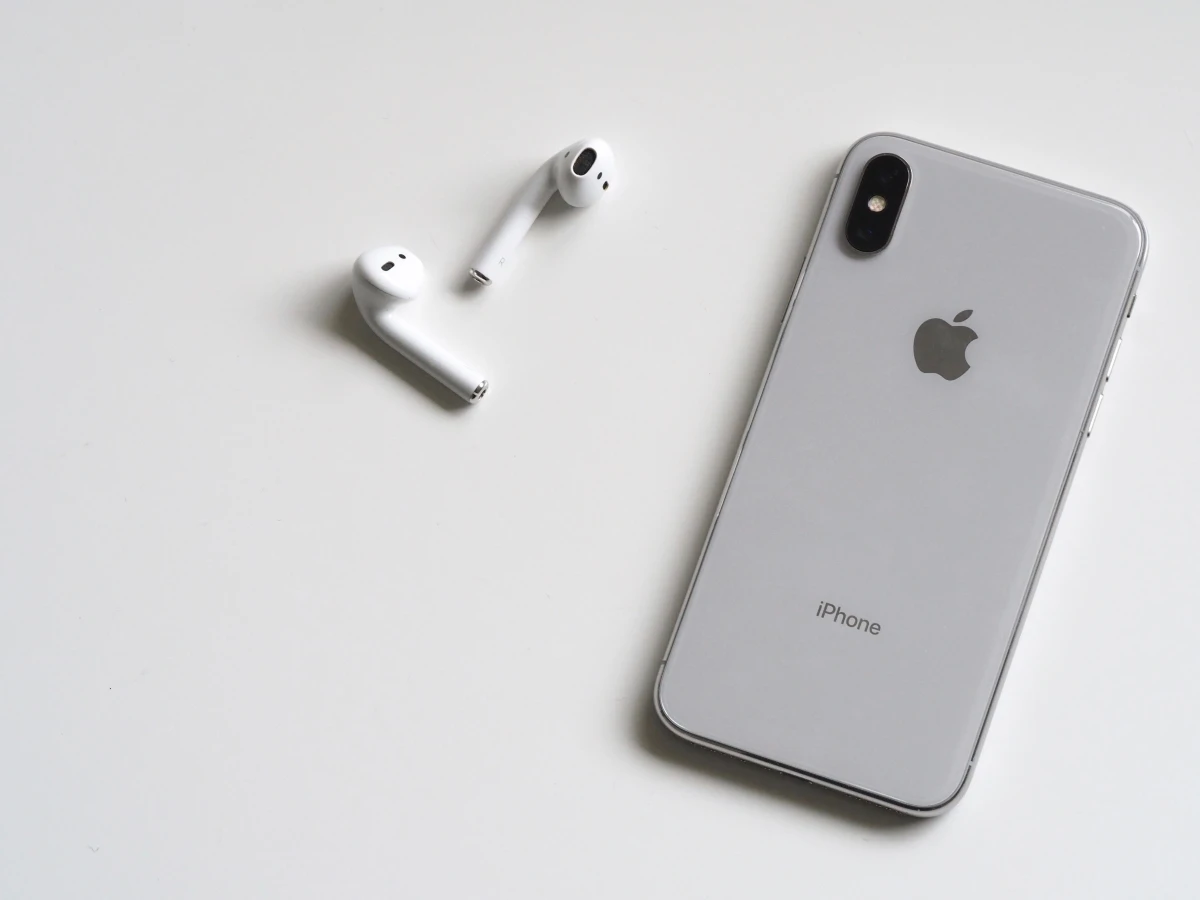
When an iPhone battery drains quickly, many users immediately assume the battery is damaged. Sometimes that is true, but many problems come from heavy apps, weak signal, high brightness, background activity, new updates, location use or charging accessories.
Before replacing the battery, check battery usage, signal strength, screen habits, charging equipment and recent changes. A clear pattern saves money and avoids unnecessary repair.
Check Battery settings first
Battery settings show app usage and screen activity. A single app may be responsible for unusual drain, especially after an update or heavy background use.
Separate active drain from idle drain
If the iPhone drains during gaming, video, maps or camera use, that is different from draining while unused. Idle drain may point toward background activity, weak signal or battery health.
Review screen and location habits
High brightness, always-on display where available, long screen time, navigation and constant location access can drain power. Small settings can make daily battery more predictable.
Inspect charging behavior
A worn cable, weak adapter, dirty port or heat during charging can confuse the user. The phone should charge consistently with trusted accessories.
Understand battery health calmly
Battery health information is useful, but it should be combined with real symptoms such as sudden shutdown, poor standby and fast drain during basic tasks.
iPhone guide scorecard
| Guide area | Good sign | Warning sign |
|---|---|---|
| Usage | Battery screen reviewed | Battery blamed blindly |
| Idle drain | Pattern observed overnight | Problem judged randomly |
| Screen/location | Heavy settings managed | Brightness and GPS ignored |
| Charging | Trusted cable tested | Faulty accessory overlooked |
| Health | Repair considered after checks | Battery replaced too early |
Clean action checklist
- Open Battery settings.
- Check usage by app.
- Observe overnight drain.
- Reduce unnecessary brightness.
- Review location permissions.
- Restart after unusual drain.
- Update problem apps safely.
- Test trusted charger and cable.
- Avoid unknown battery saver apps.
- Seek service help for swelling, heat or sudden shutdowns.
Why this guide matters
- Battery drain guides should avoid panic and help users find the real cause.
- Not every fast drain means the iPhone is useless or needs immediate replacement.
- Poor network signal is an underrated battery problem during travel, offices and basements.
- Charging heat should be treated carefully without suggesting unsafe repair steps.
- The final verdict should separate habit fixes from genuine battery ageing.
Real-world guide flow
- Start by identifying the exact user problem before changing settings, deleting data or resetting the phone.
- Use built-in iPhone settings, iCloud, Find My and trusted official apps before trying extra tools.
- Protect photos, chats, payment apps and account access before cleanup, transfer, reset or repair decisions.
- Check recent changes such as iOS updates, new apps, low storage, chargers, travel, scam calls or permission prompts.
- Finish with one safe result the reader can verify immediately on the iPhone.
Detailed owner checklist
- Use this iphone battery drain guide on the actual iPhone because habits, iCloud settings and Apple ID access change the result.
- Write down what changed before the issue appeared: new app, update, charger, trip, storage warning, payment message or support call.
- Avoid suspicious links, fake support numbers, risky repair tricks, unknown configuration profiles and unofficial app downloads.
- Back up important data before deleting files, removing apps, resetting settings, changing accounts or transferring phones.
- Check whether the phone is used for banking, business, family support or student work before making any risky change.
- Use Apple ID recovery, Find My, iCloud and privacy settings responsibly without trying bypass methods.
- Escalate to bank support, Apple support, carrier support or trusted service help when money, data or device safety is involved.
- Keep the final advice practical enough for parents, students, business owners and normal iPhone users.
Expanded iPhone impact checks
- Check battery usage at the same time for two or three days because one travel day can distort judgment.
- Compare battery drain on Wi-Fi and mobile data because weak signal can drain more power than users expect.
- Review location-heavy apps such as maps, delivery, weather, social and ride apps separately.
- Check whether battery drain began after a recent iOS update and give the phone time to settle after update work.
- Observe overnight drain with screen off to separate idle problems from active usage.
- Inspect charger behavior only with trusted cables and adapters, not unknown accessories.
- Avoid battery-saver apps that demand strange permissions or create ads.
- Look for heat during battery drain because heat plus drain points to heavy work or possible device issue.
- Use Low Power Mode as a short-term helper, not as the entire solution.
- Seek service when drain is paired with swelling, shutdown, extreme heat or charging instability.
Final publishing checks
- No jailbreak, activation-lock bypass, spyware, stolen-device, risky repair or unsafe financial instruction is included.
- The topic solves a real iPhone pain point instead of becoming a generic settings overview.
- The article is useful for search because it answers a specific problem with safe steps.
- The article can later be internally linked from Android, Windows, troubleshooting, privacy and beginner guide pages.
- The conclusion avoids live app rankings, current offers and brand-specific repair promises.
Business content note
Service centers and technology publishers can create battery-help articles and diagnostic support pages through Indian Web Services services.
Final verdict
This iPhone battery guide is useful because it helps users avoid unnecessary repair while still respecting real battery and charging warning signs.
Final reader-fit checks
- Review iPhone Battery Drain Guide: Find App, Signal, Screen and Charging Problems with a real iPhone user scenario before import.
- Keep the guide focused on one problem, one safe diagnosis path and one practical result.
What's Your Reaction?
 Like
0
Like
0
 Dislike
0
Dislike
0
 Love
0
Love
0
 Funny
0
Funny
0
 Wow
0
Wow
0
 Sad
0
Sad
0
 Angry
0
Angry
0






Comments (0)