

iPhone Performance Guide: Slow Apps, Low Storage, Background Activity and Safe Resets
An iPhone performance guide covering slow apps, low storage, background activity, updates, battery health, overheating, network issues and safe reset decisions.
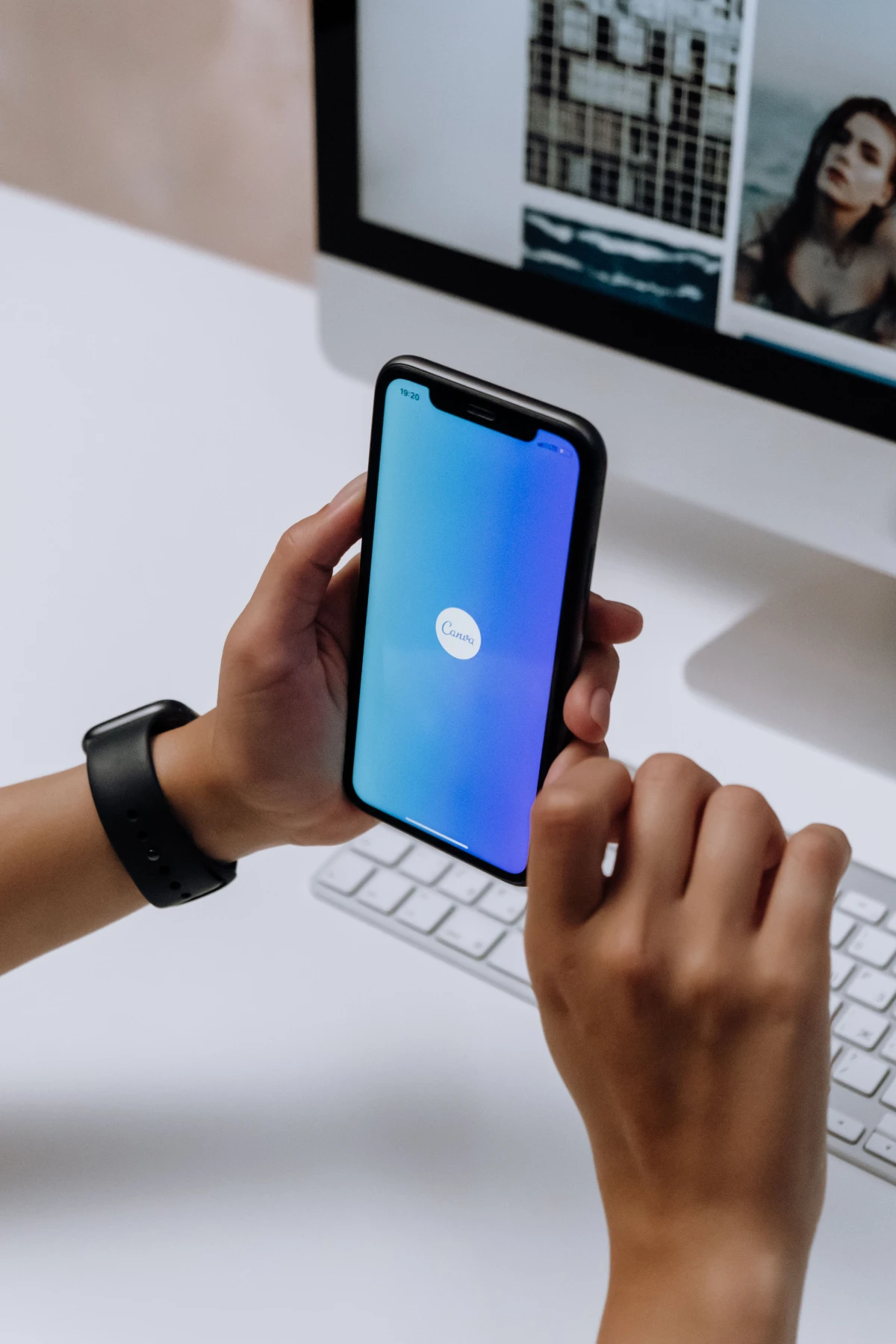
A slow iPhone does not always mean the device is finished. Performance can be affected by low storage, background activity, weak network, app problems, updates, battery health, overheating or too many old files.
Fix performance safely by checking storage, app behavior, updates, battery health and network conditions before resetting or replacing the phone.
Check storage first
Low storage can make apps crash, camera saving fail and updates struggle. Free space safely before assuming the iPhone is too old.
Review app-specific problems
If only one app is slow, update or reinstall that app from the official store. Do not reset the whole phone for one broken app.
Watch heat and battery behavior
Heat, battery drain and slowness often appear together. Identify whether the phone slows during charging, camera use, gaming or navigation.
Update carefully
System and app updates may improve stability, but users should back up important data and avoid updating right before urgent work.
Use reset decisions carefully
Resetting settings or erasing the phone should be a last step after backup and basic checks. Important files should be protected first.
iPhone guide scorecard
| Guide area | Good sign | Warning sign |
|---|---|---|
| Storage | Free space checked | Phone blamed immediately |
| Apps | Problem app isolated | Whole phone reset quickly |
| Heat/battery | Pattern observed | Symptoms ignored |
| Updates | Backed up before major changes | Updated in panic |
| Reset | Used only after backup | Data risked |
Clean action checklist
- Check iPhone Storage.
- Restart the phone.
- Update problem apps.
- Check battery health and heat.
- Review network if apps load slowly.
- Back up before major changes.
- Avoid random cleaner apps.
- Reinstall only affected apps first.
- Use reset settings carefully.
- Erase phone only after full backup and verification.
Why this guide matters
- Performance guides should stop users from taking drastic action too early.
- A slow app and a slow phone are different problems and should be diagnosed differently.
- Storage and battery health are common performance factors that users overlook.
- Reset advice should be conservative because data loss is worse than temporary slowness.
- The final verdict should help users choose safe troubleshooting before replacement.
Real-world guide flow
- Start by identifying the exact user problem before changing settings, deleting data or resetting the phone.
- Use built-in iPhone settings, iCloud, Find My and trusted official apps before trying extra tools.
- Protect photos, chats, payment apps and account access before cleanup, transfer, reset or repair decisions.
- Check recent changes such as iOS updates, new apps, low storage, chargers, travel, scam calls or permission prompts.
- Finish with one safe result the reader can verify immediately on the iPhone.
Detailed owner checklist
- Use this iphone performance guide on the actual iPhone because habits, iCloud settings and Apple ID access change the result.
- Write down what changed before the issue appeared: new app, update, charger, trip, storage warning, payment message or support call.
- Avoid suspicious links, fake support numbers, risky repair tricks, unknown configuration profiles and unofficial app downloads.
- Back up important data before deleting files, removing apps, resetting settings, changing accounts or transferring phones.
- Check whether the phone is used for banking, business, family support or student work before making any risky change.
- Use Apple ID recovery, Find My, iCloud and privacy settings responsibly without trying bypass methods.
- Escalate to bank support, Apple support, carrier support or trusted service help when money, data or device safety is involved.
- Keep the final advice practical enough for parents, students, business owners and normal iPhone users.
Expanded iPhone impact checks
- Check whether slowness affects every app or only one app before judging the whole phone.
- Free storage safely because low space can cause app crashes, update failures and camera issues.
- Restart the iPhone after cleanup or update because performance changes may appear after reboot.
- Check whether slow loading is actually weak Wi-Fi or mobile data rather than phone performance.
- Review battery health and overheating patterns together because they often affect speed.
- Update the affected app before reinstalling or resetting the phone.
- Back up important data before any reset option.
- Avoid cleaner apps that promise unrealistic speed gains.
- Use erase-all-content only after backup verification and clear reason.
- End with a practical decision: fix settings, repair, or plan upgrade based on real symptoms.
Final publishing checks
- No jailbreak, activation-lock bypass, spyware, stolen-device, risky repair or unsafe financial instruction is included.
- The topic solves a real iPhone pain point instead of becoming a generic settings overview.
- The article is useful for search because it answers a specific problem with safe steps.
- The article can later be internally linked from Android, Windows, troubleshooting, privacy and beginner guide pages.
- The conclusion avoids live app rankings, current offers and brand-specific repair promises.
Business content note
Technology support businesses can build practical performance guides and safer troubleshooting flows through Indian Web Services services.
Final verdict
This iPhone performance guide is high-impact because it helps users avoid unnecessary resets and replacements while still identifying serious device problems.
Final reader-fit checks
- Review iPhone Performance Guide: Slow Apps, Low Storage, Background Activity and Safe Resets with a real iPhone user scenario before import.
- Keep the guide focused on one problem, one safe diagnosis path and one practical result.
Final import-ready completion
- Check whether slow performance appears after opening one specific app, after charging, after low storage warnings or after network changes.
- Keep one safe test at a time so users can understand what improved performance instead of changing many settings blindly.
- Do not erase the iPhone as a first fix; backup, storage cleanup and app-specific checks should happen before reset decisions.
What's Your Reaction?
 Like
0
Like
0
 Dislike
0
Dislike
0
 Love
0
Love
0
 Funny
0
Funny
0
 Wow
0
Wow
0
 Sad
0
Sad
0
 Angry
0
Angry
0





Comments (0)